If you’ve ever needed to write a document, make a spreadsheet, or create a presentation — but didn’t want to pay for expensive office software — then LibreOffice might be exactly what you’re looking for.
LibreOffice is free, powerful, and trusted by millions of people around the world. Whether you’re a student, a small business owner, or someone who just wants a simple tool for everyday work, LibreOffice makes things easy.
Let’s understand What is LibreOffice in the simplest way possible — without confusion with technicalmiki.com.
⭐ What is LibreOffice?
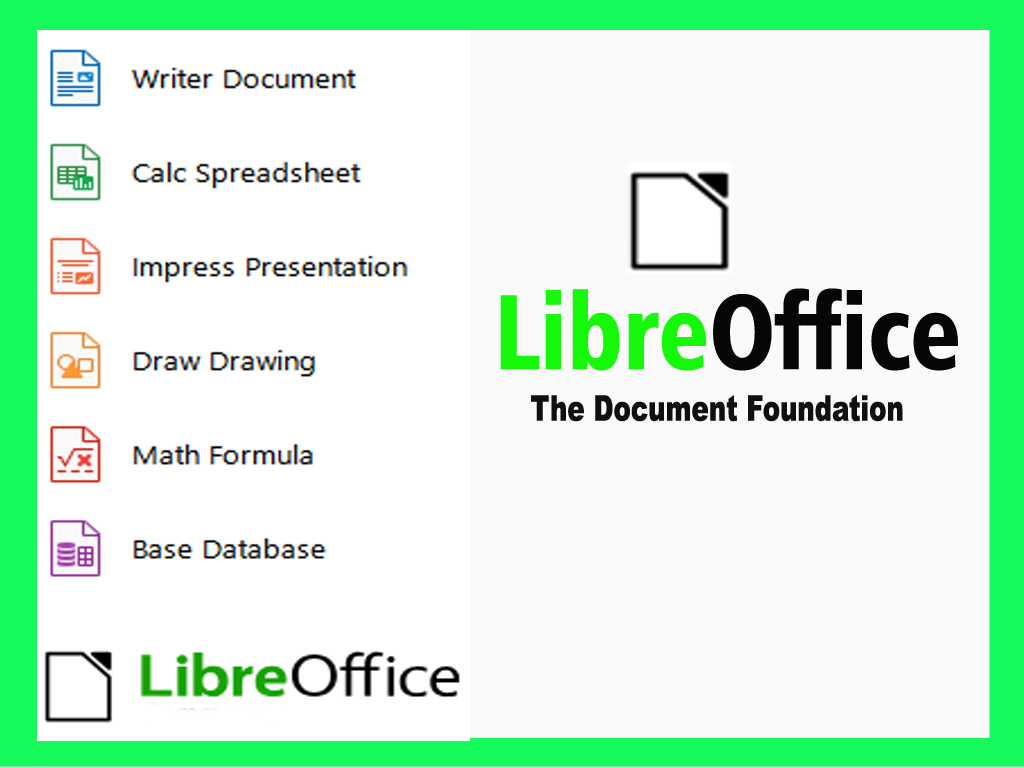
LibreOffice is a free and open‑source office suite. It works just like Microsoft Office, but you don’t have to pay anything.
It includes:
- Writer – for writing documents
- Calc – for spreadsheets
- Impress – for presentations
- Draw – for diagrams and graphics
- Base – for databases
- Math – for formulas
LibreOffice is built by a global community that believes software should be free, open, and accessible to everyone.
⭐ A Small Story (What is LibreOffice)
Arjun, a college student, needed to prepare assignments and presentations. His laptop didn’t have Microsoft Office, and he couldn’t afford a subscription. One day, his teacher told him:
“Try LibreOffice. It’s free and works just like MS Office.”
Arjun downloaded it in a few minutes. He opened Writer, typed his assignment, and felt instantly comfortable. Calc handled his data perfectly. Impress helped him make a clean presentation.
That day, Arjun realised something important: Good software doesn’t always need a price tag.
⭐ Why Choose LibreOffice?
✔ 1. It’s Completely Free
No subscription, no hidden charges, no trial period.
✔ 2. Open Source & Community Driven
Thousands of volunteers improve it regularly.
✔ 3. Works on All Platforms
Windows, macOS, Linux — everything.
✔ 4. Opens Microsoft Office Files
You can open and save .docx, .xlsx, .pptx easily.
✔ 5. Packed With Features
From simple letters to complex spreadsheets — it handles everything.
⭐ Who Should Use LibreOffice?
LibreOffice is perfect for:
- Students
- Teachers
- Freelancers
- Small business owners
- Office workers
- Writers and bloggers
- Linux users
- Anyone who wants a free Microsoft Office alternative
Basically, LibreOffice is for everyone.
⭐ System Requirements
LibreOffice is lightweight. Almost any modern computer can run it.
- Windows: Windows 7 or newer
- macOS: macOS 10.12 or newer
- Linux: Most distros support it
- RAM: 512MB recommended
- Storage: Around 1.5GB
If your computer can browse the internet, it can run LibreOffice.
⭐ How to Download LibreOffice
- Go to libreoffice.org
- Click Download
- Choose your operating system
- Click the download button
- Wait for the installer to finish downloading
That’s it.
⭐ How to Install LibreOffice
Windows
- Double-click the installer
- Click Yes
- Choose Typical Installation
- Click Install
- Wait a few minutes
- Click Finish
macOS
- Open the .dmg file
- Drag LibreOffice to Applications
- Right-click → Open (first time only)
Linux
- Many distros already include LibreOffice
- Or install via terminal: sudo apt install libreoffice
⭐ Starting LibreOffice for the First Time
When you open LibreOffice, you’ll see the Start Centre, where you can choose:
- Writer
- Calc
- Impress
- Draw
- Base
- Math
It also shows your recent documents.
⭐ Creating Your First Document (Writer)
- Open Writer Document
- Type anything — a note, a paragraph, anything
- Explore the top menu
- Save your file: File → Save As → Choose location → Save
Tip: LibreOffice autosaves, but manual saving is always safer.
⭐ LibreOffice Interface
- Menu Bar: All tools and options
- Toolbars: Quick actions
- Sidebar: Styles, formatting, properties
- Status Bar: Page number, zoom, language
Everything is clean and beginner-friendly.
⭐ Opening Different File Types
LibreOffice supports:
- .docx
- .xlsx
- .pptx
- .odt
- .ods
- .odp
- CSV
Just click File → Open and select your file.
⭐ Customizing LibreOffice
- Change themes
- Add extensions
- Add dictionaries
- Customize keyboard shortcuts
- Change UI language
Go to Tools → Options to explore.
⭐ Hidden Features Most Beginners Don’t Know
- Built‑in PDF editor
- Document signing
- AutoText for quick writing
- Styles and formatting panel
- Export to EPUB
- Track changes
- Compare documents
- Master slides in Impress
LibreOffice is more powerful than most people think.
⭐ Best Extensions for LibreOffice
- Language Tool (grammar checker)
- PDF Import Extension
- Template packs
- Writer2ePub
- Calendar extension
- Barcode extension
These tools make LibreOffice even better.
⭐ LibreOffice vs Microsoft Office
| Feature | LibreOffice | Microsoft Office |
| Price | Free | Paid |
| Platforms | Windows, macOS, Linux | Windows, macOS |
| File Support | Opens MS Office files | Limited ODF support |
| Privacy | No tracking | Cloud-based |
| Community | Open-source | Commercial |
⭐ Common Mistakes Beginners Make
- Not saving in .odt format
- Ignoring the Styles panel
- Not customizing toolbars
- Forgetting updates
- Using old templates
- Not exploring extensions
Avoiding these makes your experience smoother.
⭐ Troubleshooting & Help (What is LibreOffice)
If you get stuck:
- Use the Help menu
- Press F1
- Visit official documentation
- Join community forums
- Search online
Most problems have simple solutions.
⭐ The Future of LibreOffice
LibreOffice is improving every year. More features, better design, faster performance, and stronger community support.
As more people move toward open‑source tools, LibreOffice is becoming a symbol of:
- Freedom
- Privacy
- Digital independence
⭐ A Friendly Note for Beginners
Don’t worry if you’re new to LibreOffice. You don’t need to be a tech expert. Just explore slowly, try different tools, and enjoy the freedom of using a powerful office suite – completely free.
Once you start using LibreOffice, you’ll realise how peaceful it feels to work without pop‑ups, subscriptions, or constant reminders to upgrade. It’s just you and your work – simple and distraction‑free.
⭐ Conclusion
LibreOffice is one of the best free office suites available today — simple, powerful, and perfect for everyday use. Whether you’re writing assignments, managing accounts, or creating presentations, LibreOffice gives you everything you need without costing a single rupee.
Start using it today and enjoy the freedom of open‑source software.
This is a technicalmiki.com post — helping you learn technology in the simplest way.